How to Effectively Remove Duplicates in Pipedrive CRM
Scoop Team
How to Remove Duplicates in Pipedrive CRM (2026)
Duplicate records in Pipedrive skew your reports, split deal history across two entries, and trigger repeat outreach to the same contact. Removing them comes down to two native tools:
- The Merge duplicates tool for cleaning contacts and organizations in bulk
- The detail-view merge for combining two records one at a time
This guide covers:
- The Merge duplicates tool steps
- The detail-view merge steps
- How Pipedrive decides what counts as a duplicate
- How to stop duplicates from entering during import
- The logic Pipedrive uses for people, organizations, and deals
- The best practices for maintaining a clean CRM

Why a clean CRM matters
A clean CRM is the foundation of accurate sales reporting.
When every contact, deal, and organization exists once, your pipeline numbers are trustworthy and your team acts on real data instead of guesses.
When duplicates pile up, three things break:
Reporting accuracy
Two records for the same deal double-count pipeline value and distort your forecast.
Team efficiency
Reps waste time deciding which of two contact records is current, and sometimes work the wrong one.
Customer experience
Duplicate contacts lead to duplicate emails, which erodes trust with the buyer.

Why Pipedrive is prone to duplicates
Pipedrive creates duplicates for a few predictable reasons, and knowing them tells you where to look.
The most common sources:
Manual entry
A rep adds a contact who already exists under a slightly different spelling or a second email.
Imports
A spreadsheet import runs without the merge step enabled, so every row becomes a new record.
Email sync and web forms
An inbound lead arrives under a personal email while the same person already exists under a work email.
Integrations
A connected app pushes records that overlap with what is already in Pipedrive.

How to identify duplicates in Pipedrive
Start by knowing the three record types that duplicate and the fields Pipedrive checks. Duplicates fall into these buckets:
Contact (people) duplicates
The same person entered more than once, usually from inconsistent names, phones, or emails.
Organization duplicates
The same company under two records, often with different or missing address fields.
Deal duplicates
Two open deals for the same opportunity, which quietly inflate your forecast.
Merge duplicates tool benefit
Pipedrive flags contact and organization duplicates automatically through its built-in detection, so you rarely have to hunt manually.
The Merge duplicates tool groups suspected matches into sets for review.
For deals, there is no automatic flag, so you scan the pipeline for repeated names yourself.

How Pipedrive decides what counts as a duplicate
Pipedrive uses different matching rules for each record type, and the rules are stricter than most users assume.
- For people: it merges when it finds a matching organization, phone, OR email.
- For organizations: it matches on the address field.
- For deals: there is no duplicate identifier at all, so two deals with the same name are never treated as duplicates.
The table below breaks down the matching field, the tool that handles each type, and the practical catch for each record type.
How to remove duplicates with the Merge duplicates tool
The fastest way to clean contacts and organizations in bulk is the native Merge duplicates tool.
It reviews suspected matches across your whole database and merges them in one pass. Follow these steps:
- Open the account menu in the top right corner and go to Tools and apps, then select Merge duplicates.
- Choose the item type you want to clean up, either People or Organizations.
- Review the duplicate sets Pipedrive suggests based on matching names, emails, phones, or addresses.
- Select the primary record you want to keep as the main source of truth.
- Click Preview to confirm all details, notes, and linked activities combine correctly.
- Click Merge to finalize.
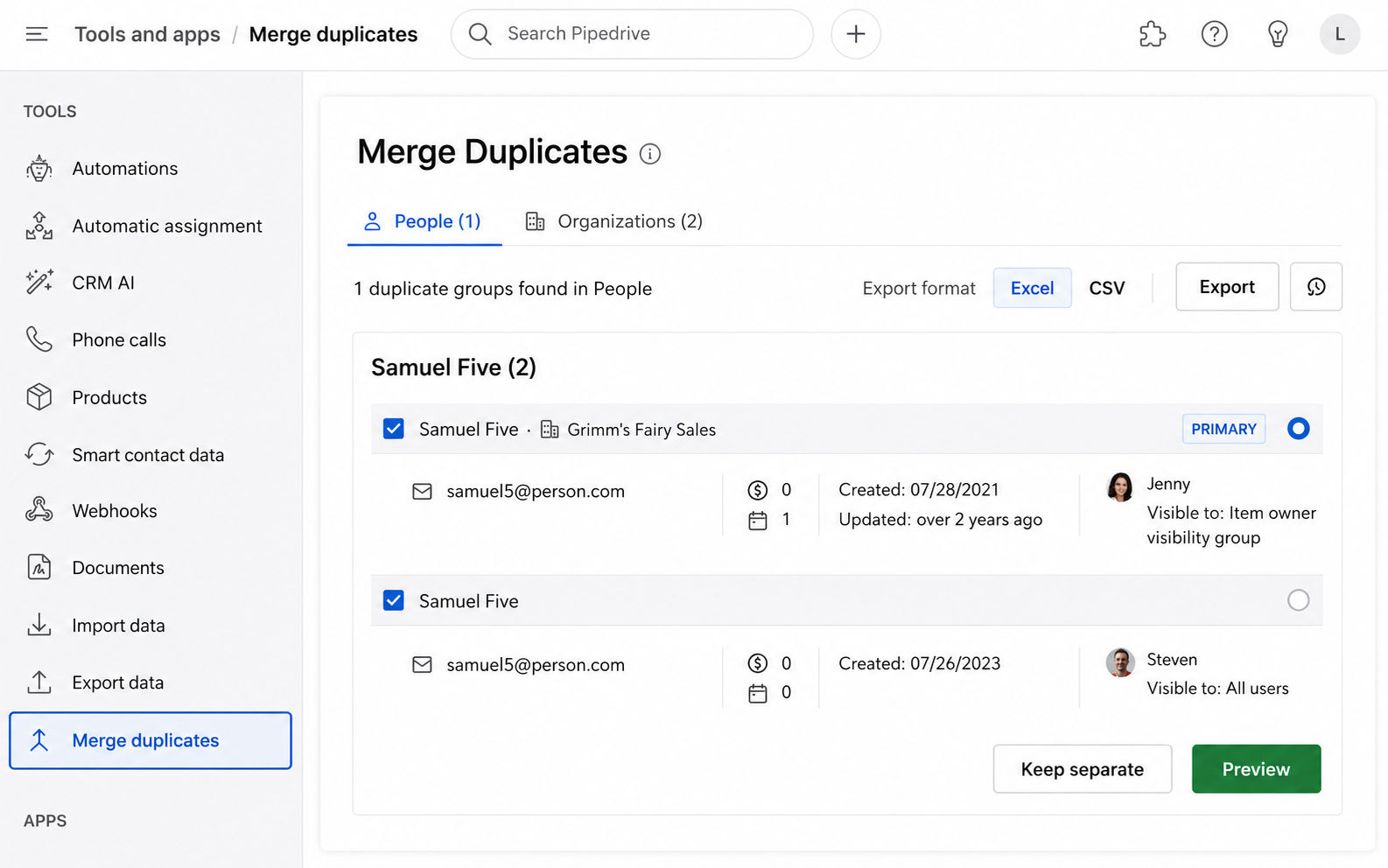
Two limits to know before you start. Merging is only available to admin users and regular users with the right permissions. And unlike deleting, which you can undo from the Restore data page for 30 days, a completed merge cannot be reversed. Preview every set before you confirm.
How to merge individual records manually
When you spot a single pair of duplicates, or when you need to merge deals (which the bulk tool cannot do), use the detail-view merge. This combines two specific records into one. The steps:
- Open the specific contact, organization, or deal you want to combine.
- Click the three dots ("...") or the More button in the top right of the detail page.
- Select Merge from the menu.
- Type the name of the record you want to merge this entry into, then pick it from the autofill.
- Use the "keep this data" option to choose which record survives, then click Preview.
- Confirm the combined record looks right and click Merge.
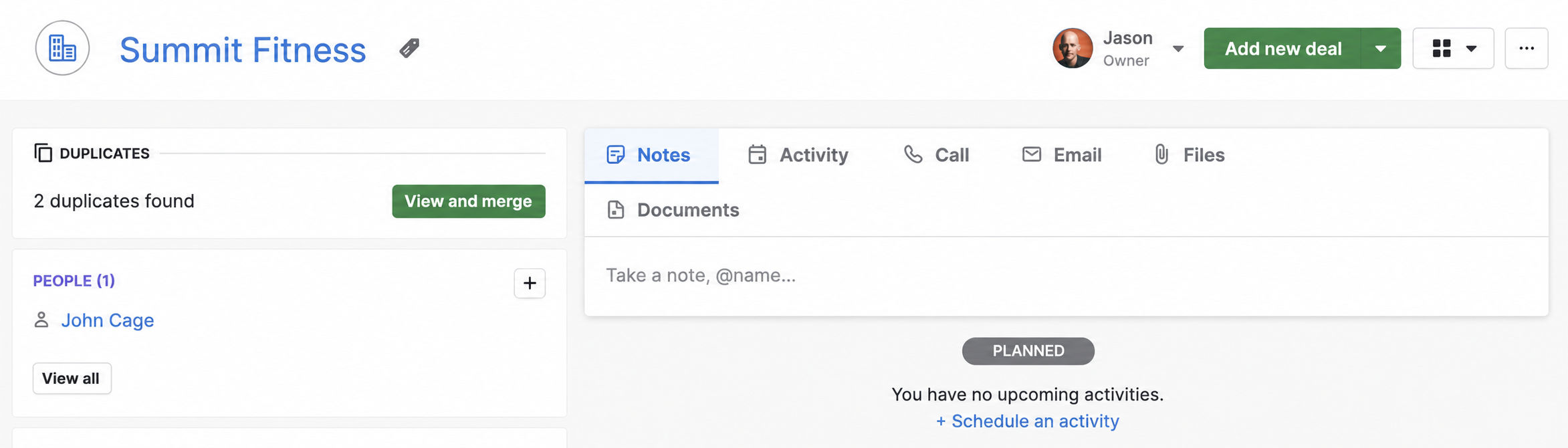
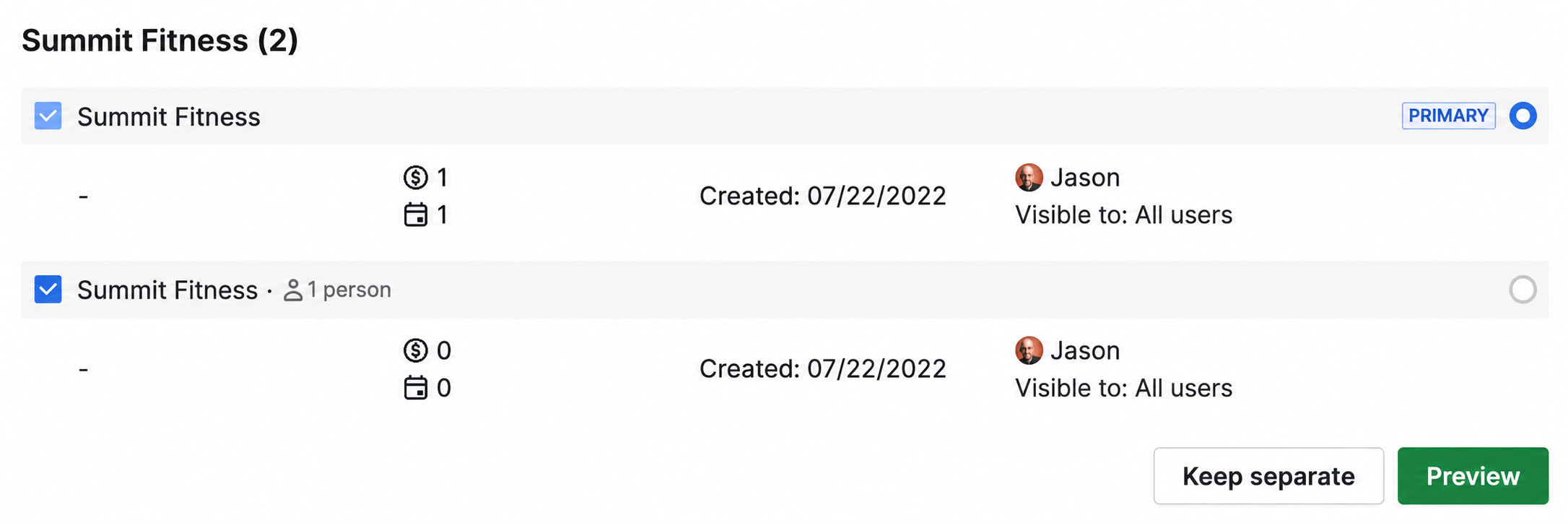

This is the only way to merge deals.
The bulk Merge duplicates tool handles people and organizations only. For deals, the detail-view merge combines linked activities and history into the surviving deal, so nothing gets stranded.
Preparing your CRM before a cleanup
Before a large deduplication pass, protect your data and set the ground rules. Three steps prevent regret:
Export first
Pipedrive recommends exporting any data you plan to change or remove, so you can restore it if a merge goes wrong. Merges are permanent.
Archive stale deals and leads
Archiving removes inactive records from your active view without deleting the history, which reduces clutter before you dedupe.
Set data-entry standards
Agree on how names, phones, and addresses get entered so the cleanup holds.

How to prevent duplicates during an import
The cleanest CRM is one where duplicates never enter.
When you import a spreadsheet, Pipedrive offers a step to recognize and merge duplicates before the records are created.
Understanding the matching logic lets you use it well.
During import, Pipedrive checks the same fields it uses everywhere:
People
Matches on organization, phone, or email. A match on any one merges the row into the existing record and adds any new data.
Organizations
Matches on the address field. Same-name companies stay separate as long as addresses differ.
Deals
No duplicate identifier, so every deal row imports as a new deal even if names repeat.

Maintaining a duplicate-free Pipedrive CRM
Deduplication is not a one-time project.
A clean CRM stays clean through routine habits. Build these into your operation:
Schedule regular cleanups
Run the Merge duplicates tool on a set cadence, monthly or quarterly, rather than waiting for the mess to grow.
Use import merging every time
Never skip the duplicate-recognition step on a spreadsheet import.
Train the team
Make sure reps know the standard for entering names, emails, and addresses so records match consistently.
Watch your usage limits
On plans with lead and deal caps, merging and archiving keep you under the ceiling without deleting useful history.
Built for the businesses that run everywhere at once.
Scoop exists to bring best-in-class operational diagnostics to every distributed business, not just the ones big enough to staff a team for it. Meet the people building it.
- Operator-first by design
- Built for distributed teams
- Diagnostics, not dashboards
Frequently asked questions about how to remove duplicates in Pipedrive CRM
Can you merge deals in Pipedrive?
Yes, but only through the detail-view merge, not the bulk Merge duplicates tool. Open the deal, click the three dots, select Merge, and type the name of the deal to combine it with. The bulk tool handles people and organizations only.
- Bulk tool: people and organizations.
- Detail-view merge: people, organizations, and deals.
Is merging duplicates in Pipedrive reversible?
No. A completed merge cannot be undone, which is different from deleting a record. Deleted deals, people, and organizations can be restored from the Restore data page for 30 days, but merges are permanent. Preview every merge and export a backup first.
- Merge: permanent.
- Delete: recoverable for 30 days.
How does Pipedrive identify duplicate contacts?
For people, Pipedrive checks three fields and merges when any one matches: organization, phone, or email. For organizations, it matches on the address field. A single matching field is enough to trigger a merge, so a shared email alone will link two contacts.
- People: organization, phone, or email.
- Organizations: address.
Why does Pipedrive create so many duplicates?
Duplicates come from manual entry variations, imports run without the merge step, email sync and web forms capturing the same person under different addresses, and integrations pushing overlapping records. Deals are especially prone because Pipedrive has no duplicate identifier for them.
- Most common source: imports without duplicate recognition enabled.
Who can merge duplicates in Pipedrive?
Merging is limited to admin users and regular users with the correct permissions enabled. If the Merge option does not appear for you, check your permission set with an account administrator.
- Required: admin access or merge permissions.
How do I stop duplicates from entering during an import?
Keep the duplicate-recognition step enabled when you import a spreadsheet. Pipedrive matches people on organization, phone, or email, and organizations on address, then merges matching rows instead of creating new records. You can bypass this step if you deliberately want multiple copies.
- Enable merge-on-import to prevent new duplicates at the source.